
Most HeyGen tutorials walk you through the dashboard like a product demo. Click here, pick an avatar, type a script, hit render. What none of them tell you is that “hit render” costs money every time — and the features worth using burn through a capped monthly credit pool that resets whether you used them or not.
This is the guide for people who already know HeyGen exists and want to learn how to actually use it without watching their credits evaporate on test runs.
TL;DR — The Credit-Efficient Workflow
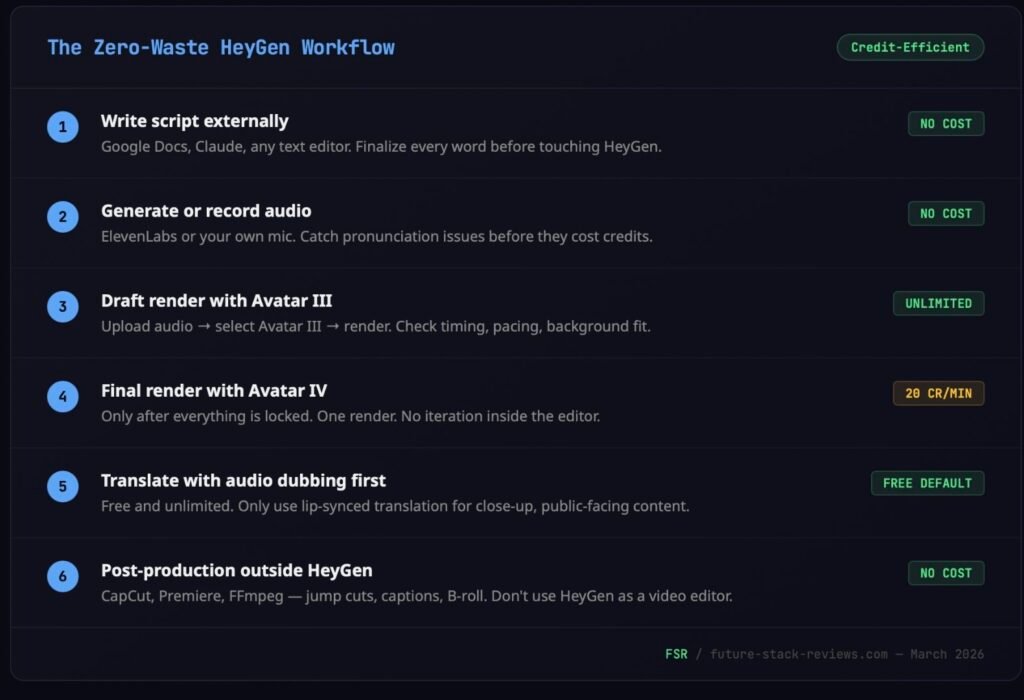
Lock your script and audio before you open HeyGen. Never draft inside the editor. Use Avatar III (unlimited on all paid plans) for every internal video, test run, and rough draft. Save Avatar IV (20 credits/minute) for final, public-facing renders only. Video Agent Quality Mode costs 20 credits per minute and caps at 15 minutes per month — Essential Mode is free but only appears when credits run out. Audio dubbing (translation without lip-sync) is unlimited; lip-synced translation costs 5 credits per minute. For the full pricing breakdown, read our HeyGen Review. For the free plan’s limitations before you sign up, see the HeyGen Free Trial guide.
The Credit Math That Matters
Before you touch the editor, you need a cheat sheet. HeyGen runs two parallel systems on every paid plan: unlimited standard features and a capped Premium Credit pool that gates everything worth paying for.
Here’s what actually costs credits on the Creator plan ($29/month, 200 credits):
Avatar IV video eats 20 credits per minute. That’s 10 minutes of Avatar IV per month, total. Custom Expressive Motion (the mode where the avatar mimics specific gestures you’ve choreographed) doubles that to 40 credits per minute. Most users don’t realize this mode exists until they’ve accidentally toggled it on and watched their credits drain at 2x speed.
Video Agent in Quality Mode costs the same 20 credits per minute, with a separate cap of 15 minutes per month on paid plans. Essential Mode exists as a credit-free fallback, but you can’t select it yourself. It only appears as an option after your credits are exhausted. The platform decides when you’ve earned the right to use the free version.
Video Translation with lip-sync runs 5 credits per minute. Audio dubbing (voice overlay without lip-sync) became unlimited in February 2026. If your translated content doesn’t need the mouth movement to match the new language, dubbing is the move.
AI-generated B-roll from Sora 2 and Veo 3.1 costs 15 credits per clip. Each Digital Twin training job consumes 20 credits. Even generating a new avatar “look” costs 1 credit per look, and the system auto-generates 4 at a time. That’s 4 credits gone in one click.
The stuff that’s actually unlimited on paid plans: Avatar III videos (up to 30 minutes each), audio dubbing, Video Agent Essential Mode (when available), stock avatars, stock images, and stock video. Build your workflow around these first. Premium Credits are for finishing touches, not for exploring the interface.
Stop Writing Scripts Inside HeyGen
This is the single most expensive habit new users develop, and every competing tutorial encourages it.
HeyGen’s editor has a script panel on the left side with an AI Script Writer built in. It works. The problem is that iterating on your script inside the editor means every revision gets closer to that Submit button, and every Submit on Avatar IV costs credits. If your wording isn’t locked before you render, you’re paying for drafts.
The workflow that experienced HeyGen users converge on looks like this: write the script in a separate tool (any text editor, Google Docs, Claude, whatever you use for long-form writing). Finalize every word. Then record or generate the audio externally. Upload the finished audio to HeyGen. This is what HeyGen calls Voice Mirroring. You upload your audio delivery and the avatar mirrors your tone, pacing, and emphasis.
Why audio-first matters: HeyGen’s text-to-speech handles common vocabulary well but trips on brand names, technical terms, and non-English words. If “Kubernetes” comes out as “Koo-ber-NET-eez” on the first render, that’s a wasted credit. Recording or generating audio externally (ElevenLabs is the tool most HeyGen power users pair it with) lets you catch pronunciation issues before they cost you anything.
One creator on X described the exact pipeline: ElevenLabs for voice generation, HeyGen for the avatar render, FFmpeg for jump cuts to remove dead space. Claimed it cut production time enough to ship 3 pieces of content per day with no team. Another automated the entire sequence with n8n triggering GPT-4o-mini for scripts, feeding into HeyGen for avatars, auto-posting to Instagram. Roughly $0.03 per finished reel.
The point isn’t that you need to build an automation pipeline on day one. But the people getting the most out of HeyGen treat it as one stage in a production chain, not as the whole studio. Scripts and audio happen somewhere else. HeyGen handles the render.
If you do use HeyGen’s built-in text-to-speech, one formatting note: keep scenes under 2,000 characters. Anything longer produces degraded output. Complex, clause-heavy sentences reduce lip-sync accuracy. Short, direct sentences render cleaner. And if you’re inserting pauses, use the “/” command menu — don’t type ellipses or dashes, which the system interprets inconsistently.
Avatar III vs. Avatar IV: A Spending Decision, Not a Quality Preference
Every tutorial frames this as “Avatar IV is better.” That’s true and unhelpful. The question isn’t which engine looks better — it’s which renders justify spending credits on, and which don’t.
Avatar III is the standard engine included with every paid plan. The output is clean, professional, and good enough for internal communications, training videos, rough drafts, social content where the bar is “not embarrassing,” and any video that doesn’t need to survive close scrutiny. It’s unlimited. Use it without thinking.
Avatar IV is the premium engine. The lip-sync is accurate across 175+ languages. The avatar responds to emotional tone in the script. Not just matching phonemes but adjusting eyebrow tension, head tilt, blink patterns. Hand gestures track speech cadence instead of looping on a timer. At close range, Avatar IV passes casual inspection for most viewers.
In practice, that means Avatar III for anything that isn’t client-facing, externally published, or high-stakes. Avatar IV for landing page videos, YouTube content, paid ads, investor presentations — the content where avatar quality directly affects whether someone trusts what they’re watching.
One thing almost nobody mentions: Avatar IV videos take longer to render. Priority processing on Creator/Pro plans covers your first 100 videos per month, with estimated turnaround around 10 minutes per minute of video. After 100 videos, the wait can stretch to 36 hours in the standard queue. If you’re on a deadline, rendering a 3-minute Avatar IV video on the 101st render of the month is a planning failure, not a platform failure.
Building a Video in AI Studio — Step by Step
This is the manual creation path — full control over every element. For the prompt-based approach, skip to the Video Agent section below.
Open HeyGen and hit the Create button (top right). Select “Create in AI Studio.” You land in the editor with four panels: script on the left, canvas in the center, toolbar/media on the right, timeline on the bottom.
Pick your avatar. Click Scene in the right panel, then Replace Avatar. The browser shows 700+ stock avatars on paid plans, filterable by style, gender, ethnicity. Your Digital Twins appear here too. Hover over any avatar for a preview clip. Pick one that matches your content’s tone — the preview is worth the 5 seconds it takes.
Set the background. Same right panel. Remove the default background or replace it with stock imagery, stock video, or your own upload. If you’re using Brand Kit (Creator plan and above), your brand colors, logos, and fonts load automatically.
Enter your script. Left panel. Type directly, or use the “/” command to upload audio, record audio, or trigger the AI Script Writer. If you prepared audio externally (as recommended), upload it here. The avatar will mirror your delivery.
Choose the voice. If you’re using text-to-speech instead of uploaded audio, the voice library has 1,000+ options across 175+ languages. Filter by age, accent, gender. Preview before committing. Third-party voices from ElevenLabs and OpenAI are also available. HeyGen’s Voice Doctor tool lets you refine any voice with natural language instructions — “more authoritative, slower pacing, slight warmth” — without re-recording.
Add scenes. The timeline at the bottom handles multi-scene projects. Each scene can have its own avatar, background, script, and voice. Drag to reorder. Add transitions between scenes from the toolbar.
Render. Click Generate (top right). Choose resolution — 720p on Free, 1080p on Creator, 4K on Business/Enterprise. Name the video, pick a destination folder, and hit Submit.
Wait time depends on your plan tier and how many renders you’ve already queued that month. If you’re within your first 100 priority renders, expect roughly 10 minutes per minute of video. If you’re past that limit on Creator or Pro, it can take up to 36 hours. HeyGen supports 3 concurrent renders on Creator/Pro, 6 on Business.
Once rendered: download as MP4, extract audio, download SRT captions, or generate a Share Page with built-in viewer analytics (views, watch time, completion rate). Business plans add SCORM export for LMS integration.
Video Agent: Prompt to Finished Video in 4 Minutes (With Caveats)
Video Agent is HeyGen’s autonomous production engine. You give it one prompt. It writes the script, picks the avatar, sources B-roll (stock or AI-generated from Sora 2 / Veo 3.1), adds transitions, captions, and music, applies your Brand Kit, and exports a finished video. Multiple users on X have reported complete videos in under 4 minutes from a single text prompt.
To use it: click Video Agent in the left panel or from the Create dropdown. Choose your avatar (or let Auto Avatar mode pick one), set duration (30s, 1min, 2min, or Auto), choose landscape or portrait, and type your prompt. You can also upload product images, charts, or logos as reference assets.
Before rendering, Video Agent shows a “Blueprint” — a full scene-by-scene plan. This is your chance to adjust before spending credits. Review it. Don’t skip it.
The critical distinction is between Quality Mode and Essential Mode. Quality Mode uses Avatar IV, Sora 2 / Veo 3.1 B-roll, consistent characters, and AI-generated media. It costs 20 credits per minute and caps at 15 included minutes per month. Essential Mode uses stock avatars and standard media only. It’s free on all paid plans — but you can’t proactively select it. Essential Mode only appears as a fallback option when you’ve run out of credits. Until then, every Video Agent render defaults to Quality Mode.
Video Agent is built for structured, repeatable formats: social media clips, product explainers, training content, internal comms. It falls apart on anything requiring cinematic storytelling, multi-camera sequences, or fine-grained timing control. For that, use AI Studio directly. Video Agent outputs can be opened in AI Studio for manual refinement after the initial render.
One limitation that matters for planning: the Creator plan caps Video Agent videos at 3 minutes each. Enterprise gets up to 3 minutes or a customized limit. You get 5 free prompt-based edits per video. If those edits increase the video’s duration, the system recalculates credit cost at the new length.
Building a Digital Twin That Doesn’t Look Wrong
A Digital Twin is a custom avatar trained on footage of you. The result can deliver any script in your likeness, in any of HeyGen’s 175+ supported languages, regardless of which language you originally recorded in. The avatar’s visual and voice outputs are fully decoupled. You can assign any voice to any face.
The creation process: go to Avatars → Create Avatar → Digital Twin → Get Started. Upload or record footage of yourself speaking. The system needs one continuous recording, no cuts, no spliced clips. Minimum 30 seconds for a basic test; 2-5 minutes for a twin you’ll actually use in production. Resolution should be 1080p or higher, 30fps minimum, face directly toward the camera.
Three things that cause the most Digital Twin failures according to both HeyGen’s documentation and user reports: talking with your hands in front of your face (the system tracks your face and gets confused by obstructions), wearing clothing with large logos or text (causes visual artifacts), and inconsistent lighting (harsh shadows or overexposure degrade the training data). Film in a quiet, evenly-lit room with a static background. Think podcast studio, not coffee shop.
After uploading footage, you’ll record a separate consent video — same person, under 35 seconds, reading a 4-letter verification code aloud. This is mandatory and the lighting/camera quality needs to match your training footage, or the identity verification fails.
Training takes 10-20 minutes. The Digital Twin costs 20 credits to create. Each plan includes limited avatar slots (1 on Free and Creator, 5 on Business). Additional slots are $29/month each. You can recreate an avatar once per billing cycle — the slot doesn’t get consumed again, but it triggers a fresh 20-credit training job.
Video Translation: The Feature That Might Justify the Subscription on Its Own
If you produce content for international audiences, this is where HeyGen’s ROI math gets compelling. You record one English video. HeyGen translates it into 175+ languages with lip-synced video where the avatar’s mouth movements actually match the target language’s phonemes.
There are two translation modes and they cost very different amounts.
Lip-synced Video Translation re-renders the avatar’s mouth for the target language. Costs 5 credits per minute in standard mode, 10 credits per minute in Precision mode (higher accuracy). The result is a translated video that looks native, not a dubbed afterthought.
Audio Dubbing overlays a translated voiceover without changing the mouth movements. This became unlimited in February 2026. No credits consumed. For content where lip-sync accuracy isn’t critical (internal training, audio-first content, presentations where the speaker is small on screen), dubbing is free and functional.
Processing time: roughly 5 minutes of platform processing per 1 minute of source content.
The move that saves the most credits: default to audio dubbing for everything. Only escalate to lip-synced translation when the video is close-up, public-facing, and the audience would notice mismatched mouth movements. This single habit can save hundreds of credits per month if you’re producing multilingual content at volume.
The Mistakes That Drain Your Credits Fastest
Rendering Avatar IV for drafts. This is the most common and most expensive mistake. Avatar III is unlimited. Use it for every test, draft, and internal review. Only render Avatar IV when the content is locked and ready for distribution.
Ignoring the Video Agent cap. Quality Mode has a 15-minute monthly ceiling on paid plans. If you burn 10 minutes on test prompts in your first week, you’ve got 5 minutes left for the rest of the month. Plan your Video Agent usage around final deliverables, not exploration.
Long scripts in single scenes. HeyGen recommends keeping scenes under 2,000 characters. One X user reported that long videos “crash halfway through” — and while HeyGen’s official policy says failed renders don’t consume credits, at least one API-tier user reported the opposite. For standard Studio users, the crash itself still costs you time. Split long content across multiple scenes.
Triggering Custom Expressive Motion accidentally. This mode costs 40 credits per minute — double the standard Avatar IV rate. If you’re not intentionally using choreographed gestures, make sure it’s toggled off before rendering.
Expecting Essential Mode to be available on demand. You can’t select it. It only surfaces when you’ve exhausted your monthly credits. If your production schedule depends on making 20 videos per month and you’ve budgeted credits for 10, the remaining 10 default to Essential Mode only because you ran out. Not because you planned it that way.
Real Workflows: How People Actually Use HeyGen
The most productive HeyGen users don’t use it as a standalone tool. They plug it into automated pipelines.
One solo creator documented an automated Instagram workflow: a selfie photo processed through HeyGen’s avatar engine, B-roll added with Python’s moviepy library, text overlays with pycaps, and uploads via the Instagram API. The result was a jump from posting once a week to 5 times per day. No editing required after the initial setup.
Another automated HeyGen with n8n and GPT-4o-mini: the workflow generates scripts, renders avatar videos, and produces finished Instagram reels at approximately $0.03 per video. A separate case combined HeyGen with n8n and Claude for scripting — the resulting content generated 18 million views from a single AI video post.
What all of these have in common: HeyGen handles the avatar render. Everything before it (scripting, audio) and everything after it (editing, posting) happens in other tools. The users getting the best results treat HeyGen as one node in a pipeline, not as a complete production solution.
For teams that don’t code, the manual version of this workflow still applies: write scripts in your preferred writing tool, generate or record audio in ElevenLabs or your own mic setup, render in HeyGen, do final cuts in CapCut or Premiere if needed. The principle is the same — minimize time and credits spent inside HeyGen by arriving with your inputs already locked.
What to Read Next
This guide covers the workflow. For the economics underneath it — how “unlimited” actually works, what Trustpilot users are saying, and how HeyGen stacks against Synthesia and D-ID — read the full HeyGen Review.
If you haven’t signed up yet and want to understand what the free tier actually gives you (it’s 90 seconds of Avatar IV per month, not the generous testing ground the marketing suggests), start with the HeyGen Free Trial breakdown.
